OOMWOO Headless Sim for LLM Agents

A concise, copy-paste quickstart for running the OOMWOO robot vacuum entirely headless (no display) — aimed at LLM coding agents, CI, and automation. Every command below is verified against the makerspet/oomwoo:jazzy-dev Docker image (last re-verified 9 Aug 2026). No X server, GPU, or GUI is required; Gazebo renders offscreen with software GL.
1. Start the dev image (headless)
Run the image detached, then drive it with one-shot docker exec commands. That pattern is scriptable and survives across steps, which suits an agent better than an interactive -it --rm session.
docker pull makerspet/oomwoo:jazzy-dev
docker run -d --name oomwoo makerspet/oomwoo:jazzy-dev sleep infinity

# one-shot and non-interactive -- no `source` step needed:
docker exec oomwoo bash -c "ros2 pkg prefix oomwoo_gazebo"
# -> /ros_ws/install/oomwoo_gazebo
The ROS 2 environment is set up for you in every shell context. Current images export BASH_ENV=/etc/ros_env.sh, which bash sources for non-interactive shells, so docker exec … bash -c "…" has ros2 on PATH immediately. Interactive shells (docker exec -it oomwoo bash) get the same environment through ~/.bashrc.
This matters for agents: the stock ~/.bashrc returns early when it is not interactive, so on older images a non-interactive docker exec … bash -c "ros2 …" fails with ros2: command not found. If you are pinned to such an image, source the three workspaces by hand first:
# only needed on images that predate BASH_ENV
source /opt/ros/jazzy/setup.bash
source /uros_ws/install/setup.bash
source /ros_ws/install/setup.bash
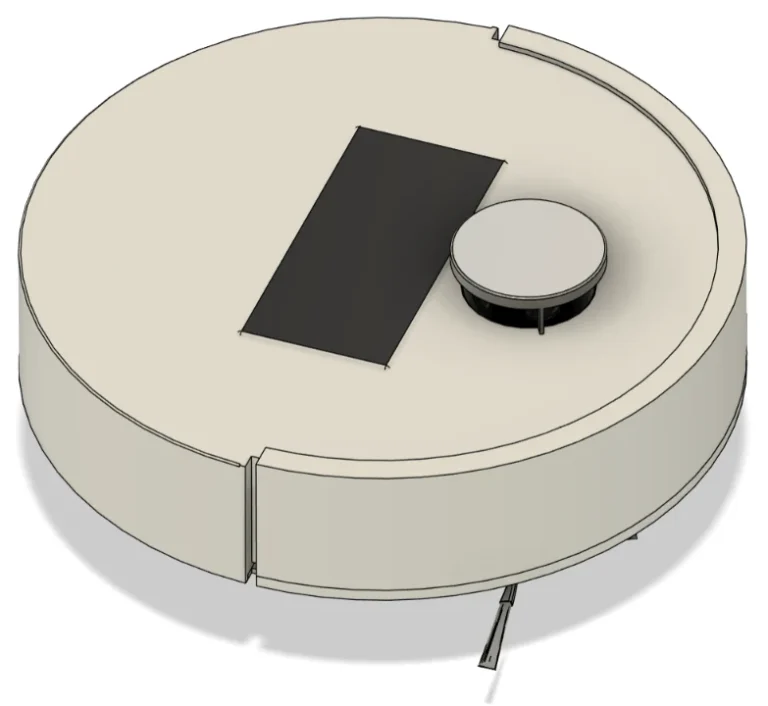
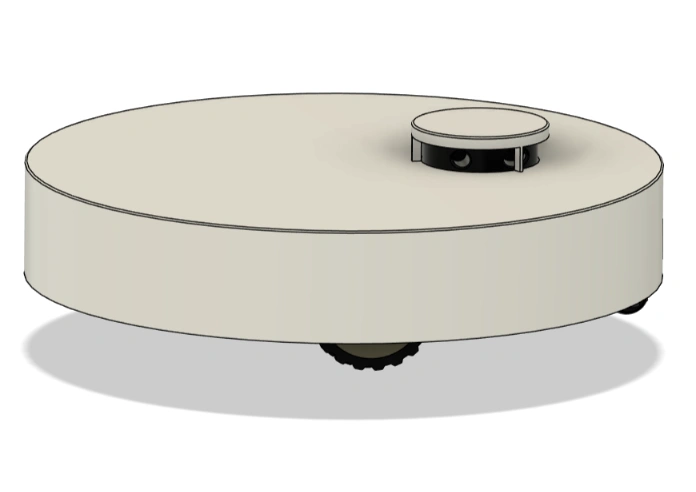
The image already contains the robot descriptions (oomwoo_one, proscenic_m6pro), the simulation worlds (oomwoo_gazebo), and the bring-up/navigation package (oomwoo_bringup). The default robot model is oomwoo_one (via kaia config robot.model).
2. Run Gazebo headless
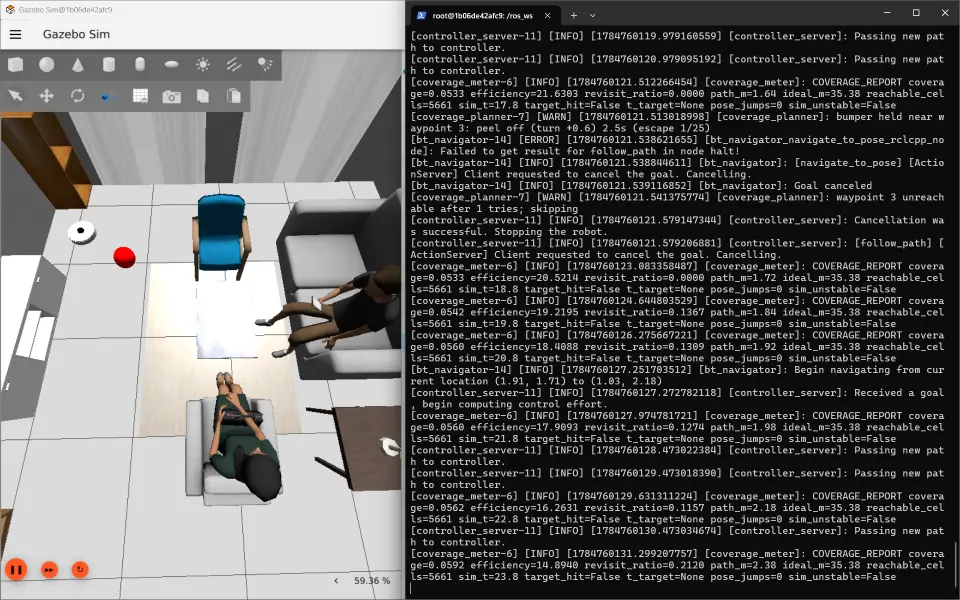
Launch the world with the headless:=true switch. This runs Gazebo server-only with offscreen rendering and forces software GL (LIBGL_ALWAYS_SOFTWARE=1, GALLIUM_DRIVER=llvmpipe), so it comes up in Docker/CI with no display.
# spawn the default robot in the living_room world, no GUI
ros2 launch oomwoo_gazebo world.launch.py headless:=true

# (omit headless:=true to get the Gazebo GUI on a machine with a display)
From a second shell — docker exec oomwoo bash -c "<command>" for scripting, or docker exec -it oomwoo bash for a human — verify the sim and drive the robot:
ros2 topic list
# expect: /scan /odom /cmd_vel /bumper_left/contact /bumper_right/contact ...

# drive forward
ros2 topic pub -r 10 /cmd_vel geometry_msgs/msg/Twist '{linear: {x: 0.2}}'

# watch a bumper fire when it hits a wall/furniture
ros2 topic echo /bumper_left/contact ros_gz_interfaces/msg/Contacts
Sanity-check the LiDAR
Gazebo takes a little while to bring the sensor pipeline up, so /scan appears in ros2 topic list before any data flows — the ROS bridge advertises it eagerly. Check the data itself rather than the topic list:
ros2 topic hz /scan
# a "topic does not appear to be published yet" warning on the first
# poll is normal; expect ~5 Hz once the sensor is up

ros2 topic echo /scan --once --field ranges
# -> array('f', [4.447, 2.128, 2.137, 4.444, ...])
A healthy scan in the living_room world has 360 finite ranges and no inf (range_max is 10 m; the room returns roughly 0.4–4.5 m). All-inf ranges mean the rays are hitting nothing — a rendering problem, not a timing one.
One trap worth knowing: do not treat Gazebo’s [Lidar.cc:139] Laser scans for … advertised on [scan] debug line as a readiness signal. Under ros2 launch that output is block-buffered, so it can appear minutes late — or not at all — while /scan is already publishing valid data. Subscribe and look at the ranges instead.
Headless is also the faster way to run: on one Windows/Docker Desktop host the same world held a real-time factor of ~1.0 headless versus ~0.6 with the Gazebo GUI, because the GUI competes for the same software renderer. The LiDAR rate tracks it directly (~5 Hz headless, ~3.3 Hz with the GUI). If you are timing cleaning coverage against the wall clock, use headless.
3. Run coverage cleaning
The cleaning behaviour (boustrophedon coverage planner + coverage meter) ships prebuilt in the image as the oomwoo_coverage, oomwoo_nav_localize and oomwoo_sim_support packages. Launch the headless coverage regression (sim + Nav2 + coverage planner + meter) directly:
# headless coverage-cleaning run (no display required)
ros2 launch oomwoo_sim_support coverage_regression.launch.py
Using an older image that predates the bundled cleaning packages? Clone and build them into the workspace first:
cd /ros_ws
git clone -b main https://github.com/makerspet/oomwoo-ros2-tools src/oomwoo-ros2-tools
colcon build --symlink-install \
  --packages-select oomwoo_sim_support oomwoo_coverage oomwoo_nav_localize
source install/setup.bash
Watch the floor get covered (second shell). /coverage_meter/ratio rises from 0.0 toward 1.0 as the robot cleans:
ros2 topic echo /coverage_meter/ratio            # std_msgs/Float32, 0.0 -> 1.0
ros2 topic echo /coverage_planner/cleaning_active
ros2 topic echo /coverage_meter/efficiency

# also published, useful for debugging a poor run:
#   /coverage_meter/revisit_ratio    how much floor got cleaned twice
#   /coverage_meter/covered_grid     the occupancy-style coverage map
#   /coverage_planner/plan           the boustrophedon path being followed

# example progression on a fresh run:
#   ~10s  coverage_ratio = 0.019
#   ~40s  coverage_ratio = 0.058
#   ~70s  coverage_ratio = 0.084
#  ~100s  coverage_ratio = 0.117
For a single scored pass, use the regression wrapper. It exits 0 only if coverage >= 90% and efficiency >= 80%, and writes a JSON report. The script is not marked executable in the image, so invoke it with bash — calling it as ./run_coverage_regression.sh fails with Permission denied (exit 126):
bash /ros_ws/src/oomwoo-ros2-tools/deploy/run_coverage_regression.sh
cat /root/coverage_report.json

# repeat and report the spread:
RUNS=3 bash /ros_ws/src/oomwoo-ros2-tools/deploy/run_coverage_regression.sh

# extra args are forwarded to the launch, e.g. to watch it with a GUI:
bash /ros_ws/src/oomwoo-ros2-tools/deploy/run_coverage_regression.sh gui:=true
The wrapper sources ROS 2 itself and isolates DDS discovery (ROS_DOMAIN_ID=77, ROS_LOCALHOST_ONLY=1), so it is safe to run with no environment set up beforehand.
4. Notes for agents
- No display needed.
world.launch.py headless:=trueand the coverage regression both set software GL for you. If you drive Gazebo manually, exportLIBGL_ALWAYS_SOFTWARE=1andGALLIUM_DRIVER=llvmpipefirst. - Non-interactive shells work out of the box.
docker exec oomwoo bash -c "ros2 …"needs nosource; the image exportsBASH_ENV=/etc/ros_env.sh. Note this coversbash, notsh -c, and notdocker exec oomwoo ros2 …with no shell at all (docker execbypasses the entrypoint). - Prefer headless when measuring. The GUI costs roughly a third of real-time on a software renderer, which stretches every wall-clock cleaning measurement.
- Isolate the ROS graph when running more than one sim:
export ROS_DOMAIN_ID=77 ROS_LOCALHOST_ONLY=1. - Switch robots with
robot_model:=proscenic_m6pro(or any description package) on the launch command; the default isoomwoo_one. - Bumpers publish
ros_gz_interfaces/msg/Contactson/bumper_left/contactand/bumper_right/contactwhen the robot touches a wall or furniture. - Sim stability. Under nested virtualization (WSL2/Docker) the sim clock can occasionally stall; the regression flags this via
/coverage_meter/sim_unstableand exit code 2 (measurement invalid) rather than reporting a bogus coverage number.