Run OOMWOO on a Smartphone: ROS 2 on Android with Termux
OOMWOO will be able to use an old Android phone instead of a Raspberry Pi CM4/CM5. Step one: ROS 2 in Termux - options, instructions and measured proot overhead on a Pixel 7.

OOMWOO, the open-source robot vacuum, will be able to use an Android smartphone instead of a Raspberry Pi CM4/CM5 for compute, WiFi and its user interface. The first step is getting ROS 2 to run on the phone. This post covers why, the options I looked at, step-by-step instructions, and test results. I will update it as the full OOMWOO software stack and the USB link to the robot come up.
Why a smartphone
Many of us have an old phone in a drawer. A few-year-old phone is a capable robot computer:
- 8 CPU cores and 8 GB of RAM on the Pixel 7 I tested with
- WiFi, Bluetooth, cameras and an IMU built in
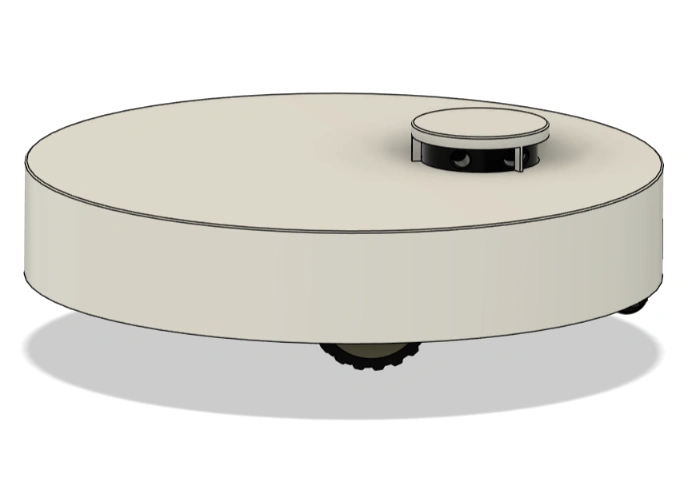
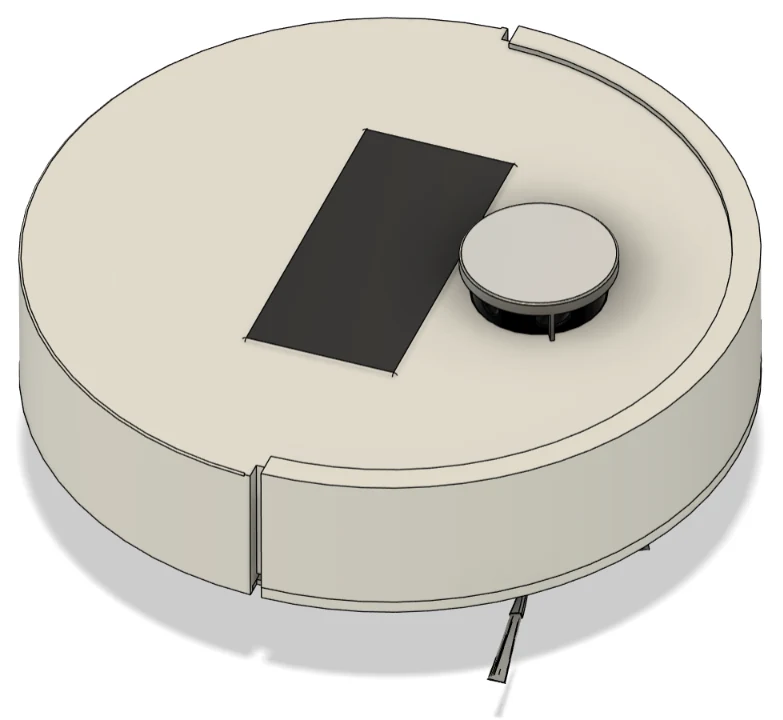
- a touchscreen that becomes the robot’s user interface, seen through the top of the enclosure
- its own battery, and it costs nothing if you already own it
Reusing a phone also keeps it out of the landfill. Raspberry Pi CM4/CM5 remains the main option; the phone is an alternative.
Options I looked at
| Option | Effort | Notes |
|---|---|---|
| Ubuntu in proot, official ROS 2 packages | Low – no porting | proot intercepts some system calls, which costs CPU. Works today; this is what I use below. |
| Native Termux build of ROS 2 | High – build and maintain 100+ packages | Fastest. Worth it only if proot’s overhead turns out to matter. |
| glibc-runner (Termux glibc packages) | Medium | Runs Linux binaries without proot. Does not work with the Google Play build of Termux, which starts every program through Android’s own loader. |
| Rooted phone with a chroot | Low | No proot overhead, but needs root. I want OOMWOO to work on stock phones. |
Newer Android versions also include a Linux Terminal app that runs Debian in a virtual machine. I have not tried it yet.
Two old obstacles, now solved
A couple of years ago I ran ROS 2 in Termux and hit two problems.
ROS 2 nodes could not talk to each other. They failed at getifaddrs() with “Permission denied”. Since Android 11, apps may not bind a netlink socket, which is how Linux’s C library lists network interfaces. Today Termux’s proot handles this, so the official ROS 2 packages discover each other out of the box. Android’s own C library also works around it, so a native build would be fine too.
Android kills background processes. Android 12 and newer start killing apps’ child processes once the phone has more than 32 of them in total, and a ROS 2 launch file starts one process per node. Two fixes:
- Turn on Disable child process restrictions in Settings > System > Developer options (Android 14 and newer)
- Run the nodes in one process as ROS 2 components. This also uses far less CPU, see the results below.
Install ROS 2 in Termux
Tested on a Pixel 7 with Android 17, the Google Play build of Termux, Ubuntu 24.04 and ROS 2 Jazzy. Ubuntu and ROS 2 take about 2 GB of storage, and the install took about 17 minutes on my phone.
Install Termux, open it and run:
pkg update
pkg install proot-distro
proot-distro install ubuntu:24.04
proot-distro login ubuntu
You are now in Ubuntu. Install ROS 2 Jazzy from the official ROS 2 repository:
apt update
apt install -y curl ca-certificates locales
locale-gen en_US.UTF-8
export ROS_APT_SOURCE_VERSION=$(curl -s https://api.github.com/repos/ros-infrastructure/ros-apt-source/releases/latest | grep -F "tag_name" | awk -F'"' '{print $4}')
curl -L -o /tmp/ros2-apt-source.deb "https://github.com/ros-infrastructure/ros-apt-source/releases/download/${ROS_APT_SOURCE_VERSION}/ros2-apt-source_${ROS_APT_SOURCE_VERSION}.noble_all.deb"
dpkg -i /tmp/ros2-apt-source.deb
apt update
apt install -y ros-jazzy-ros-base ros-jazzy-demo-nodes-cpp
Test it with a talker and a listener. In the Ubuntu shell run:
source /opt/ros/jazzy/setup.bash
ros2 run demo_nodes_cpp talker
Open a second Termux session (swipe right from the left edge, then New session) and run:
proot-distro login ubuntu
source /opt/ros/jazzy/setup.bash
ros2 run demo_nodes_cpp listener
The listener should print “I heard: [Hello World: …]” once a second. The first ros2 node list or ros2 topic list may come back empty while ROS 2 discovers the nodes; run it again.
Two more tips. Run termux-wake-lock so Android does not pause Termux when the screen turns off. And never set PROOT_NO_SECCOMP=1, see below.
Test results
I measured what proot costs on the Pixel 7, with Claude’s help.
System calls
The same calls, timed in Termux directly and in Ubuntu under proot:
| System call | Termux (native) | Ubuntu in proot |
|---|---|---|
| getpid, write | 0.2 µs | 0.2 µs |
| clock_gettime | 0.04 µs | 0.2 µs (5x) |
| UDP send + receive | 5 µs | 70 µs (14x) |
| open + close a file | 1.6 µs | 105 µs (64x) |
proot uses seccomp so that most system calls run at full speed, and only intercepts the ones it needs to translate, such as file paths and network addresses. With seccomp turned off (PROOT_NO_SECCOMP=1) every call costs 80 to 1,900 µs.
A ROS 2 camera pipeline
A 640×480 image stream at 30 Hz, the size of OOMWOO’s camera, from cam2image to showimage. Both setups delivered all 30 frames per second. CPU is in percent of one core; the Pixel 7 has 8.
| Setup | ROS 2 nodes | proot | Total CPU |
|---|---|---|---|
| 2 separate processes | 111% | 34% | 145% |
| 1 process (composed, intra-process) | 27% | 12% | 42% |
Two takeaways:
- Run the nodes in one process. It cut CPU 3.5x. Messages are passed in memory instead of going through the system calls proot intercepts, and Android’s process limit no longer matters.
- proot itself takes about a quarter of the CPU. That is acceptable for now. A native build would save it, but only if the robot needs the headroom.
Running the OOMWOO navigation stack
Next I ran OOMWOO’s own localization and navigation on the phone: slam_toolbox localizing on a saved map of the living room, plus Nav2, all in one process the way OOMWOO’s navigation.launch.py sets them up. There was no robot attached, so I recorded 3.5 minutes of sensor data from the OOMWOO One simulation – the robot wandering the living room with its LiDAR at 5 Hz, wheel odometry with real drift, and the IMU – and replayed it into the phone.
It works. slam_toolbox placed the robot at (-1.94, -0.45) m on the map, right where the simulation started it at (-2.0, -0.5), and Nav2 came up and accepted navigation goals. A replay cannot react to motion commands, so the robot does not actually drive here – that comes with a real robot.
Trimming Nav2
The first measurement was surprisingly heavy: with no goal at all, Nav2 kept about half of a laptop core busy. Profiling showed the load was not the costmaps but a fixed cost of every Nav2 node, including servers OOMWOO does not use. So I tried three changes:
- start only the Nav2 servers OOMWOO uses: controller, planner, behaviors, BT navigator, velocity smoother and collision monitor. The route, docking, waypoint and path smoother servers are left out
- send the lifecycle “bond” heartbeats once a second instead of ten times a second
- drop the 3D voxel layers from the costmaps – with a 2D LiDAR they repeat the obstacle layer’s work
In a closed-loop simulation both setups drove OOMWOO One to the same goal and stopped within 1 cm of each other, so trimming does not change how it navigates. These changes are now in OOMWOO’s navigation.launch.py and navigation.yaml.
Results
CPU in percent of one core; the Pixel 7 has 8. Phone numbers vary from run to run, as Android moves work between its fast and slow cores, so these are ranges over several runs.
| Full Nav2 (today’s launch) | Trimmed Nav2 | |
|---|---|---|
| Pixel 7, total | 182 – 275% (average 216%) | 167 – 188% (average 174%) |
| of which proot | 41 – 58% | 44 – 48% |
| Laptop (Intel i7-14650HX, no proot), total | 53 – 58% | 44 – 45% |
Trimming saves about 20% on both. The full stack needs about 2 of the phone’s 8 cores and the trimmed one less, which leaves room for the robot bridge, cleaning and the user interface. Memory is modest: about 150 MB for Nav2 and 60 MB for slam_toolbox.
One caveat: a replay runs on simulated time, so every node also processes a 100 Hz clock that a real robot does not have. A real robot should use somewhat less CPU than this.
Simulating OOMWOO on the phone, with RViz
The phone can also run the whole OOMWOO One simulation: Gazebo, OOMWOO’s localization and Nav2, and RViz on the phone’s own screen. Tap a goal in RViz and the robot drives there. No PC, no root.
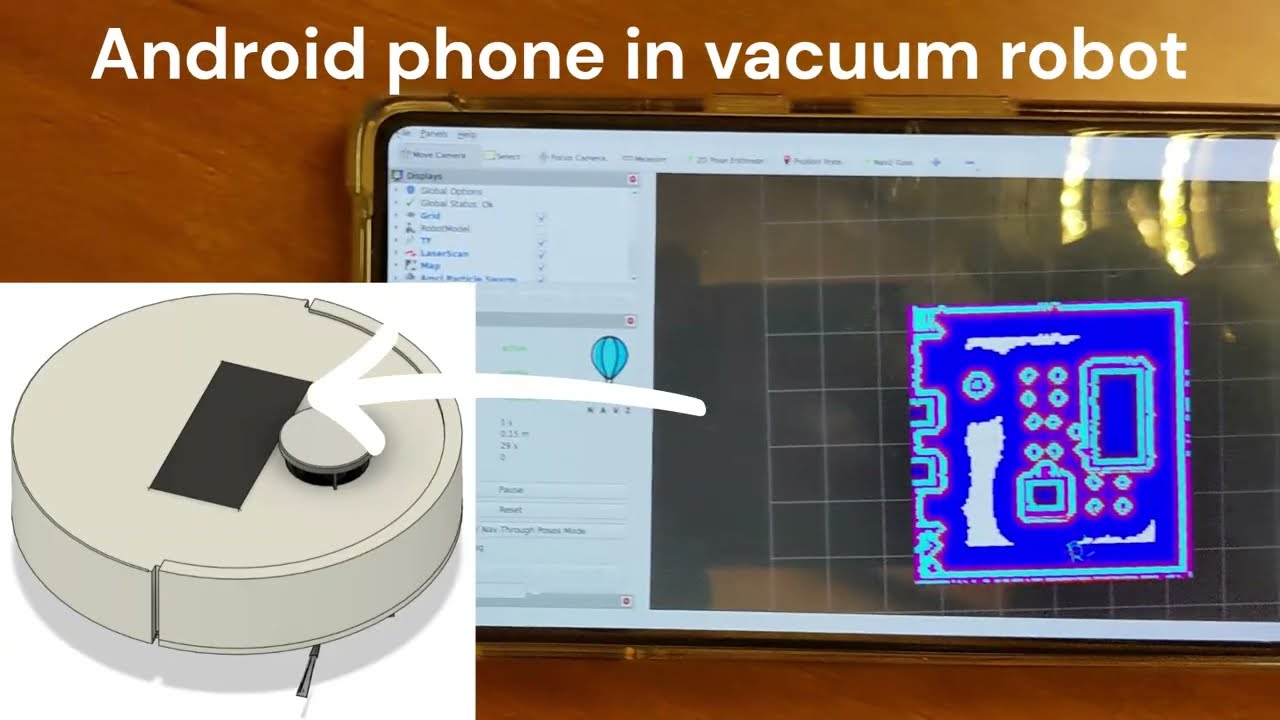
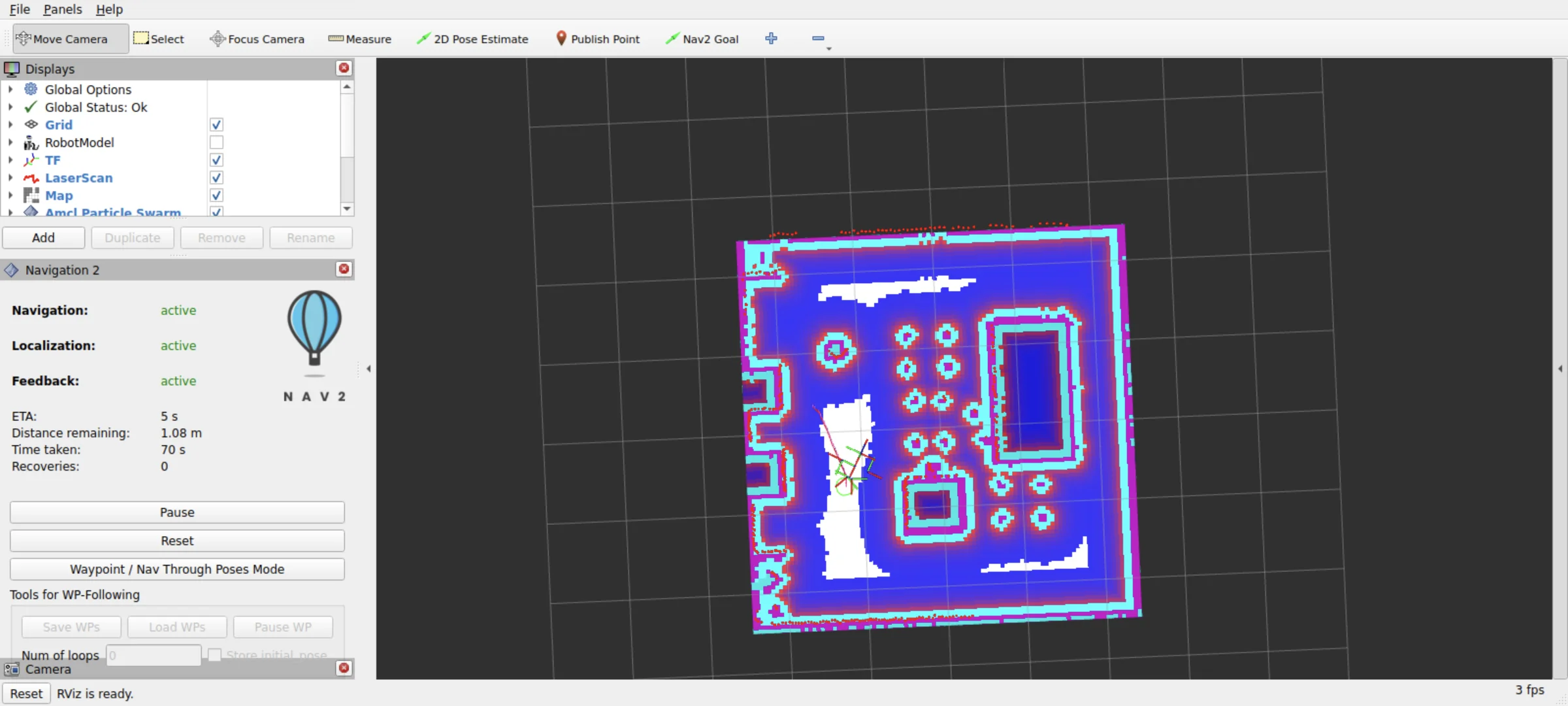
It is slow – RViz draws on the CPU at 3 to 5 frames a second, and the simulation runs at half real time – but it works end to end.
Set up
This builds on the ROS 2 install above. First install Termux:X11, which gives Termux a screen to draw on. With Termux from Google Play, use termux-x11-universal-debug.apk, not the sharedUid one. Then in Termux:
pkg install x11-repo
pkg install termux-x11-nightly
termux-x11-preference "forceOrientation":"landscape" "fullscreen":"true" "touchMode":"Direct touch" "displayResolutionMode":"scaled" "displayScale":"150" "showAdditionalKbd":"false"
The last line sets Termux:X11 to full-screen landscape, makes a tap click where you touch, and renders at a lower resolution so RViz stays responsive. Then, in Ubuntu (proot-distro login ubuntu), install the simulator and navigation, and build the OOMWOO packages:
apt install -y ros-jazzy-ros-gz ros-jazzy-navigation2 ros-jazzy-nav2-bringup \
  ros-jazzy-slam-toolbox ros-jazzy-rviz2 ros-jazzy-xacro ros-jazzy-joint-state-publisher \
  ros-jazzy-robot-state-publisher python3-colcon-common-extensions git matchbox-window-manager
mkdir -p ~/oomwoo_ws/src && cd ~/oomwoo_ws/src
for r in kaiaai/kaiaai kaiaai/kaiaai_msgs makerspet/oomwoo-one makerspet/oomwoo_gazebo makerspet/oomwoo-ros2-tools; do
  git clone --depth 1 -b jazzy https://github.com/$r
done
cd ~/oomwoo_ws
source /opt/ros/jazzy/setup.bash
colcon build --symlink-install --packages-up-to oomwoo_bringup oomwoo_gazebo --cmake-args -DBUILD_TESTING=OFF
Three phone-only settings, still in Ubuntu. They make a copy of the living room world with a coarser physics step at half speed, an RViz layout that redraws 5 times a second, and relax Nav2’s collision monitor, which otherwise stops the robot because the simulated LiDAR arrives late on the phone (see below):
source ~/oomwoo_ws/install/setup.bash
W=$(ros2 pkg prefix oomwoo_gazebo)/share/oomwoo_gazebo/worlds
sed -e 's#<max_step_size>0.001<#<max_step_size>0.004<#' \
    -e 's#<real_time_update_rate>1000<#<real_time_update_rate>125<#' \
    -e 's#<real_time_factor>1<#<real_time_factor>0.5<#' \
    $W/living_room.world > $W/living_room_phone.world
sed 's/Frame Rate: 30/Frame Rate: 5/' \
    $(ros2 pkg prefix oomwoo_one)/share/oomwoo_one/rviz/navigation.rviz > ~/phone.rviz
sed -i -e '/^collision_monitor:/,/^velocity_smoother:/ s/transform_tolerance: 0.1/transform_tolerance: 1.0/' \
       -e '/^collision_monitor:/,/^velocity_smoother:/ s/base_shift_correction: true/base_shift_correction: false/' \
       -e '/^collision_monitor:/,/^velocity_smoother:/ s/source_timeout: 2.0/source_timeout: 0.0/' \
    ~/oomwoo_ws/src/oomwoo-one/config/navigation.yaml
Run
In Termux, start the X server, then open the Termux:X11 app:
termux-x11 :0 -ac &Open a second Termux session (swipe right from the left edge, then New session) and start Gazebo. Gazebo has to run in an Ubuntu session that cannot see the X server, or its LiDAR stops working:
proot-distro login ubuntu
source ~/oomwoo_ws/install/setup.bash
ros2 launch oomwoo_gazebo world.launch.py robot_model:=oomwoo_one headless:=true \
  odom_source:=robot_wheels enable_tof:=false enable_ranges:=false world:=living_room_phone.world
In a third session, start localization, Nav2 and RViz. This Ubuntu session does see the X server:
proot-distro login ubuntu --bind $PREFIX/tmp/.X11-unix:/tmp/.X11-unix
source ~/oomwoo_ws/install/setup.bash
export DISPLAY=:0 LP_NUM_THREADS=1
matchbox-window-manager -use_titlebar no &
(sleep 20; renice -n 10 -p $(pgrep -f lib/rviz2/rviz2)) &
ros2 launch oomwoo_bringup navigation.launch.py use_sim_time:=true robot_model:=oomwoo_one \
  map:=$(ros2 pkg prefix oomwoo_gazebo)/share/oomwoo_gazebo/maps/living_room.yaml rviz_config:=$HOME/phone.rviz
Switch to the Termux:X11 app. In about a minute the Nav2 panel shows Navigation active. Give it two more minutes to settle: while the phone is still busy starting up, the simulated LiDAR lags and the robot can refuse to move with “collision ahead”. Then tap Nav2 Goal and touch the map where the robot should go, dragging a little to set its heading. To stop, press Ctrl+C in both Ubuntu sessions.
What it took
- A coarser physics step. The living room world steps physics every 1 ms, and each step sends messages through system calls that proot intercepts. That held Gazebo to 0.3x real time. A 4 ms step brings it to real time.
- Gazebo out of sight of the X server. Gazebo renders its GPU LiDAR offscreen. When it can see Termux:X11, that rendering never starts, so Gazebo and RViz run in separate Ubuntu sessions. ROS 2 talks between them normally.
- Rationing RViz. There is no GPU acceleration here, so RViz draws on the CPU. Left alone it took every core, the simulated LiDAR fell seconds behind the simulation clock, and Nav2’s collision monitor stopped the robot for safety. One render thread, a lower priority, 5 frames a second and a half-speed simulation fixed it, along with the relaxed collision monitor settings above. A real robot does not render its LiDAR, so these settings are for the phone simulation only.
What is next
- Connect the phone to the robot’s microcontroller over USB. Without root there is no
/dev/ttyACM0; Termux:API’stermux-usbhands over the USB device instead, so the bridge will talk to it through libusb. Termux:API is not available for Termux from Google Play, so this step will need Termux from F-Droid or GitHub, or a small Android app of our own. - Drive a real robot from the phone, closed loop.
I will update this post as these come up.
Follow OOMWOO build
Open-source robot vacuum community build updates