Tutorial: Map, Navigate ROS2 Robot in Simulation

Are you learning ROS2 robotics but don’t have the hardware? No problem. Here is how you can do mapping and navigation in real-time simulations.
Step 1 – Install Software Prerequisites
The simulation works both on Windows and Ubuntu PCs.
Windows PC installation – watch the video below.
- Install WSL2, Docker for Windows, VcXsrv and Windows PowerShell.
- Pull the kaiaai/kaiaai:iron Docker image.
- Skip and ignore all Arduino and firmware installation.
- Optionally, install XnView to view map files in PGM format

Ubuntu PC installation – watch the video below.
- Install Docker Engine for Ubuntu and Terminator.
- Pull the kaiaai/kaiaai:iron Docker image.
- Skip and ignore all Arduino and firmware installation.

Step 2 – Watch Instructions Video

Get new tutorials by email
Step 3 – Launch Docker
Windows PC
- Launch Docker
- Launch XLaunch
- Launch PowerShell
- Launch Docker image, see command below
docker run --name makerspet -it --rm -v c:\maps:/root/maps -p 8888:8888/udp -e DISPLAY=host.docker.internal:0.0 -e LIBGL_ALWAYS_INDIRECT=0 kaiaai/kaiaai:iron- Open two more Bash terminals inside the newly created Docker container, see command below
docker exec -it makerspet bashUbuntu PC
- Launch Docker
- Launch Docker image, see command below
sudo docker run --name makerspet -it --rm -v ~/maps:/root/maps -p 8888:8888/udp -e DISPLAY -e QT_X11_NO_MITSHM=1 --volume="/tmp/.X11-unix:/tmp/.X11-unix:rw" --volume="${XAUTHORITY}:/root/.Xauthority" kaiaai/kaiaai:iron- Open two more Bash terminals inside the newly created Docker container, see command below
sudo docker exec -it makerspet bashHow LiDARs are used in self-driving robots?
Build a real LiDAR self-driving Arduino/ROS2 robot using our kit - with complete step-by-step instructions. No robotics experience necessary.
See the full robot kit →Step 3 – Launch Robot Simulation (Gazebo), Drive Manually
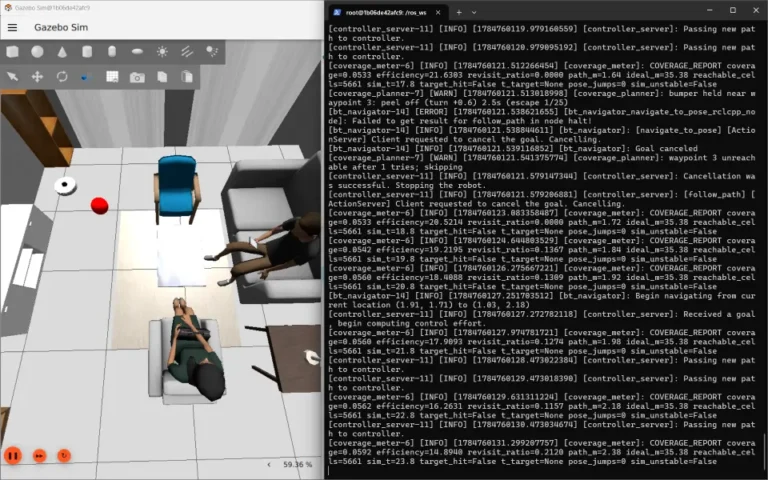
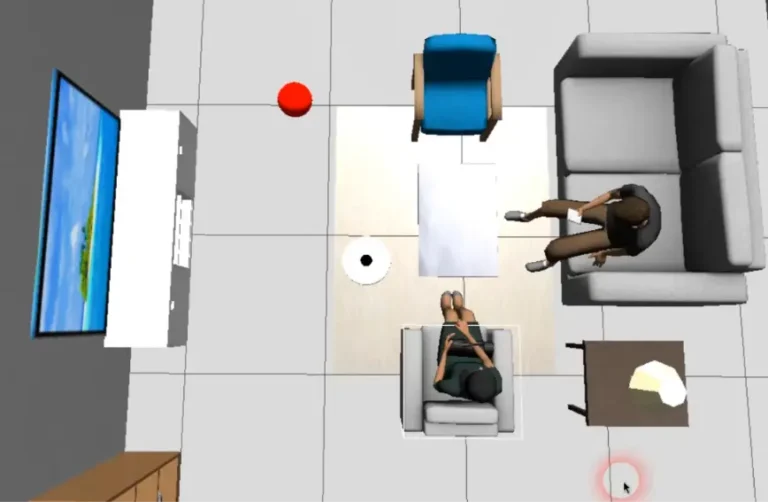
Inside the Docker container, run the command below:
ros2 launch kaiaai_gazebo world.launch.pyLaunch the manual teleoperation utility using the command below:
ros2 run kaiaai_teleop teleop_keyboardDrive the robot inside the 3D Gazebo simulation using keys W, S, A, D and the space bar.
Step 4 – Create Map, Navigate Using SLAM
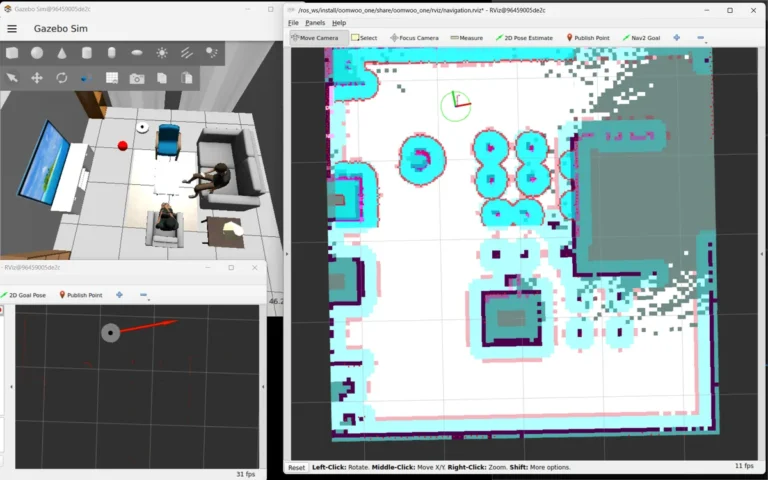
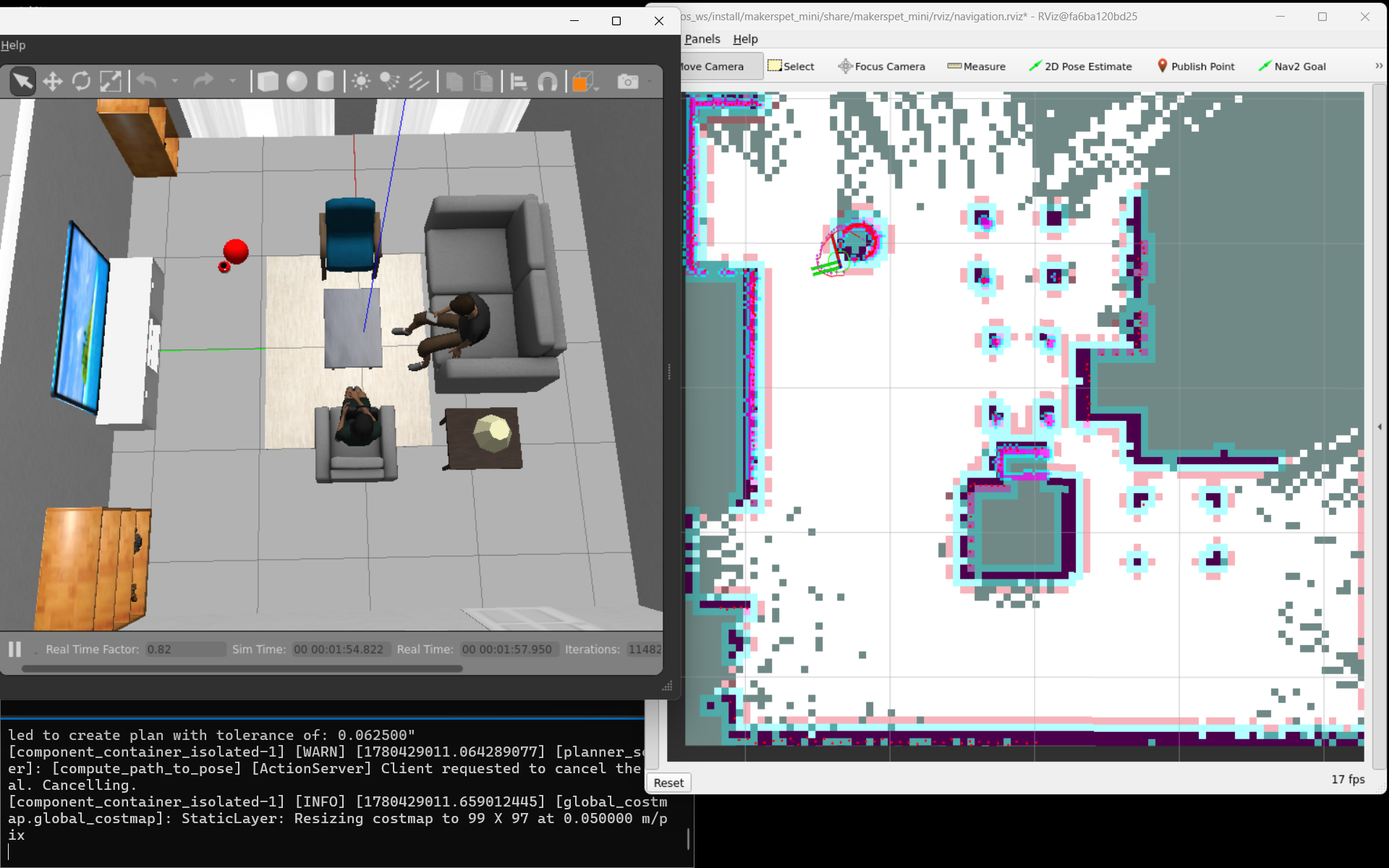
Launch ROS2 Nav2 SLAM using the command below:
ros2 launch kaiaai_bringup navigation.launch.py use_sim_time:=true slam:=TrueGive the robot a destination (goal) to self-drive (navigate) to:
- Left-click the Nav2 Goal button in RViz
- Left-click-and-hold on the map at a destination of your choosing
- Drag in the direction you want your robot to face upon arrival
- Release the mouse button
- Wait for the robot to arrive to the destination
Repeat giving the robot new goals until the entire map has been explored. Save the map using the command below.
ros2 run nav2_map_server map_saver_cli -f ~/maps/map --ros-args -p save_map_timeout:=60.0FYI, instead of having the robot drive automatically, you can drive the robot manually using the teleop_keyboard utility.